Craft
How I use Figma variables to drive color, spacing and light/dark modes, so one change updates the whole design.
Draft: full write-up coming.
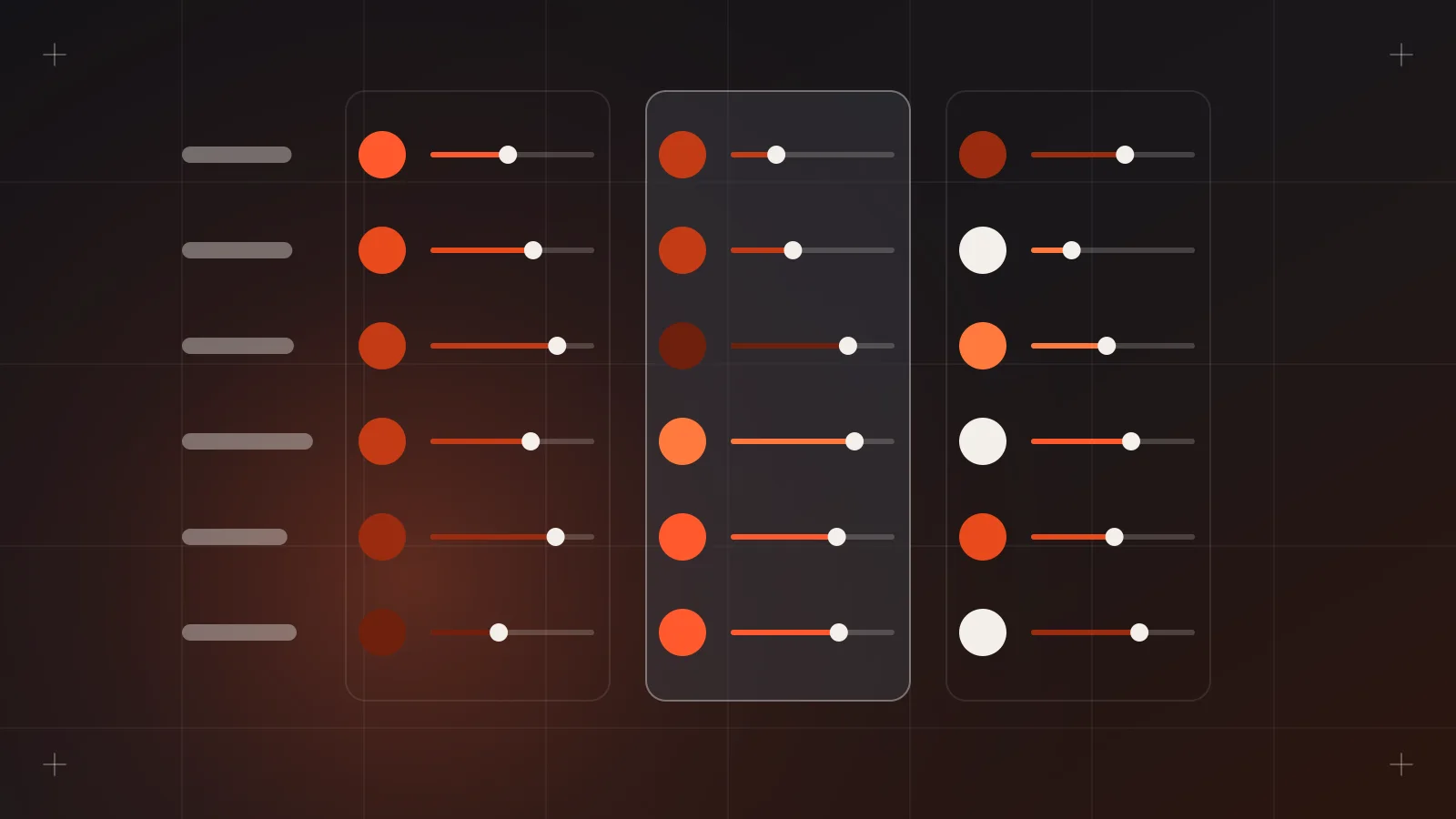
Variables are the closest Figma gets to the way developers think. Instead of picking a hex code every time, you pick a named value like surface/primary or space/md, and that name can resolve to different values depending on context.
Figma's own definition is that variables store reusable values that can change depending on the context of a design. Light and dark mode is the classic example, but it's only the start.
Why I moved my files to variables
I work on a lot of projects in parallel, across industries like education, banking, hospitality and retail. Some of them have needed dark mode, some needed to support more than one brand look, and almost all of them changed colors at least once after the client saw the first designs.
Before variables, a palette change meant updating styles and checking every screen. Theming meant duplicating frames. Now I change a value once and every layer using it updates, and switching a frame between light and dark is a single setting.
There's a handoff benefit too. When a developer inspects a layer and sees color/text/primary instead of #1A1A1A, they know exactly which token to use.
The building blocks
As of 2026, Figma has six variable types:
- Color: solid fills, with optional opacity.
- Number: spacing, radius, sizes, font sizes.
- String: text content, such as labels in different languages.
- Boolean: true/false, useful for showing and hiding layers.
- Timing: durations in milliseconds, for prototype animation.
- Easing: easing curves or springs.
Variables live in collections, and each collection can have modes. A mode holds one value per variable in that collection. So a Theme collection might have Light and Dark modes, and every color in it has a value for each.
Inside collections, groups keep things organized, and each collection can hold up to 5,000 variables. Modes are available on Education, Professional, Organization and Enterprise plans, and how many modes you get per collection depends on the plan.
Two layers: primitives and semantics
This is the structure I use on almost every project, and it's the one thing I'd tell anyone starting out.
- Primitives: raw values with no meaning attached.
blue/500,gray/100,space/16. One collection, one mode. - Semantic tokens: named by purpose, aliased to primitives.
color/surface/default,color/text/muted,color/border/focus. This collection has the modes.
Aliasing means a variable points to another variable of the same type. So color/surface/default points to gray/0 in Light mode and gray/900 in Dark mode. Designers only ever apply the semantic tokens. Primitives are hidden from publishing so nobody picks blue/500 directly.
Name a variable for what it does, not what it looks like.
text/mutedsurvives a rebrand.gray-darkdoesn't.
Settings that make a library usable
A few settings in the edit variable panel that I always fill in:
- Scoping: limits which properties a variable shows up for. Spacing numbers only appear for gap and padding, not for opacity or font size. Scoping is available for number, color and string variables. It only filters the pickers in Figma's UI. It doesn't actually stop a variable being bound elsewhere.
- Code syntax: sets the name developers see in Dev Mode code snippets. You can set one each for Web, Android and iOS.
- Descriptions: a line on when to use the token.
- Hide from publishing: for primitives and internal helpers.
How modes behave
This is the part that confuses people at first. By default, layers with variables are set to Auto, which means they inherit the mode of their parent. If the parent is also Auto, Figma keeps checking up the tree. If nothing sets a mode, it uses the collection's default.
In practice, I set the mode once on the page or top-level frame, and everything inside follows. To show a dark version of a screen, I duplicate the frame and switch its mode. No duplicated components, no second set of styles.
Prototypes can switch modes too, using the Set variable mode action. That's how I build a working light/dark toggle in a prototype for client reviews.
Multi-brand projects
For clients with several sub-brands or properties, like a hotel group, Figma's extended collections let you create a parent collection and extend it per brand, overriding only the values that differ. Extensions stay linked, so updates to the parent come through. This is an Enterprise plan feature. You also can't add variables or modes in an extension, or change names, scopes or descriptions there. Those live in the parent.
On plans without it, I keep brands as modes in the semantic collection. It's less elegant, but it works for most agency-sized projects.
Common mistakes
Skipping the semantic layer. Applying primitives directly to designs means dark mode needs a full rework later.
Too many tokens too early. I start with the tokens the design actually uses and add more as patterns repeat. A 400-token system for a five-page site is overhead nobody will maintain.
Inconsistent naming. Pick a structure, like category/role/state, and stick with it. Developers will use the names in code.
Not binding spacing. Colors get variables, but gaps and padding stay as raw numbers. Then the spacing scale drifts. I bind auto layout gap and padding to number variables from the start.
Forgetting to check both modes. Every new component gets reviewed in light and dark before it's published.
How it plays out on projects
On a content services website that needed dark mode, the order was simple. Primitives first, then semantic tokens with Light and Dark modes, then components built only with semantic tokens. By the time screens were designed, dark mode was mostly a matter of switching the mode and fixing a handful of edge cases, usually images and illustrations.
That's the real value for me. Variables move the hard decisions to the start of a project, when they're cheap, instead of the end, when they're not.
Sources
- Figma Learn, "Overview of variables, collections, and modes": https://help.figma.com/hc/en-us/articles/14506821864087-Overview-of-variables-collections-and-modes
- Figma Learn, "Create and manage variables": https://help.figma.com/hc/articles/15145852043927
- Figma Learn, "Modes for variables": https://help.figma.com/hc/en-us/articles/15343816063383
- Figma Learn, "Extended collections": https://help.figma.com/hc/en-us/articles/36346281624471